Showing posts with label utorrent. Show all posts

Tuesday, 17 September 2013

Hide TORRENT completely from your PC

  1. First install BitTorrent software in on the PC. After installing that software just run it.
  2. After opening BitTorrent window click on Options and in that select Preferences option or just click Ctrl+P. A new preference window will open.
  3. In Preferences window click General option and in that you will see both “Check association on startup” and “Start BitTorrent on system startup” options are checked by default. Now uncheck those two options.
  1. In the same window you will see the Boss-Key option. By default the value is None. Just click on that box and set any shortcut key to open and close BitTorrent software. For example click Alt+A key in that box to set that shortcut.
  2. Click Apply and OK button.
  3. Now just click Alt + A key (see step 4) to open/close BitTorrent software window. Now we get BitTorrent to auto start in hidden mode. To do that just follow a few more steps.
  4. Go to the folder where you have installed BitTorrent software and in that select BitTorrent.exe and rename it to some other name (ex: system42.exe) so that it cannot be detected in Task Manager (alt+ctrl+del).
  5. Now on your desktop right click and select New >> Shortcut option and then click Browse button and select the renamed BitTorrent.exe (system42.exe if you renamed).
  6. Now you will see the BitTorrent icon on the desktop. Select that icon and right click and click Property option. In Property window select the Shortcut tab. You will see a Target box with the value or similar. Type "C:\Program Files (x86)\BitTorrent\BitTorrent.exe" (or whatever you renamed "Bittorrent.exe" to).
  7. Now just add /hide to that box now it will look something like this "C:\Program Files (x86)\BitTorrent\BitTorrent.exe" /hide
  8. That’s it. Copy this icon to your startup folder (All Programs >> Startup).
Now whenever your PC starts BitTorrent will run in hidden mode and automatically start downloading files without showing the icon in your system tray. To open/close Bittorrent use the shortcut key you set.

Follow the same above steps for uTorrent.
Wednesday, 6 March 2013

Remote Access uTorrent


What is µTorrent Remote

µTorrent Remote is a simple and secure web service that enables access to µTorrent from anywhere on the internet. Just create an account and you're done. There's no complicated network setup required. Head to remote.utorrent.com from any browser (even mobile!) to manage your torrents. When downloads complete, you can even pull the content to your remote device.

How do I get an account?

µTorrent Remote is unlike most other web services. Because we connect to your remote µTorrent client and keep your information private, we do not allow you to sign up on this web site. Instead, you must sign up for an account within the client.
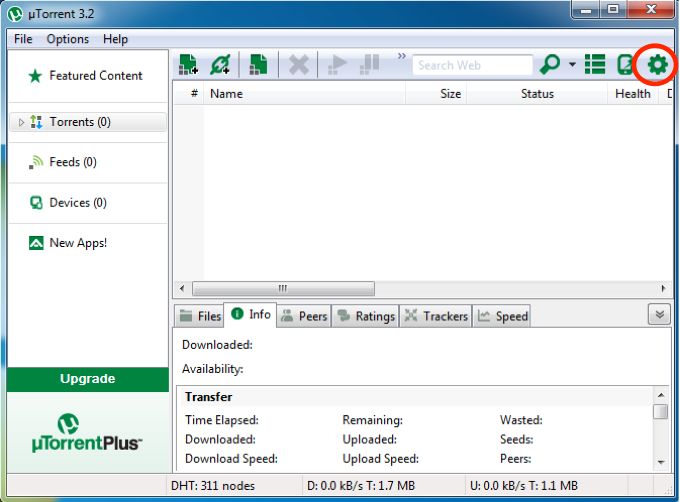
µTorrent Remote Access Preferences button in the µTorrent toolbar
Click the µTorrent Remote Access Preferences button in the µTorrent toolbar.
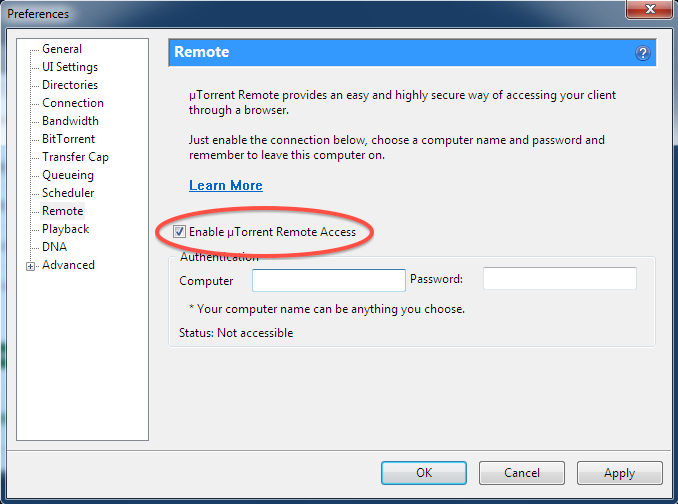
µTorrent Enable Remote Access in the µTorrent settings
Select the "Remote" section and check "Enable µTorrent Remote Access".
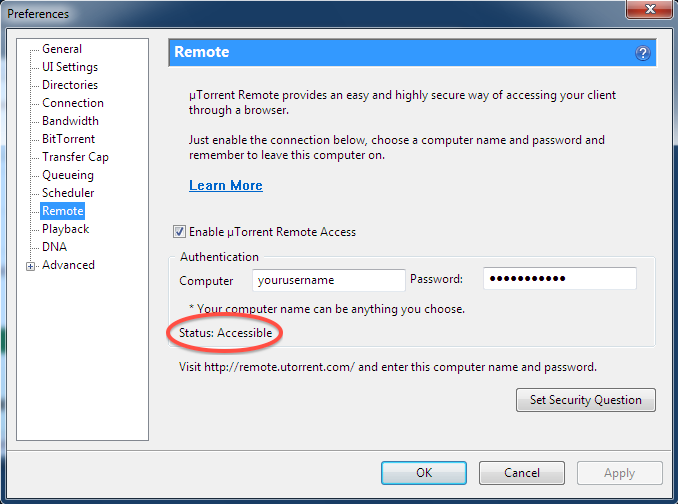
µTorrent Username and Password for Remote Access in the µTorrent settings
Choose a Computer name and password and enter it here. Click the "Apply" button. After a few seconds, you should see "Status: Accessible" or "Status: Registered". Close the preferences.
That's it. Congratulations! You can now access your client from anywhere at https://remote.utorrent.com.
You can also download the free µTorrent Remote app for Android.


© 2013 Secrect Hack. All rights resevered. Designed by Templateism

Back To Top